


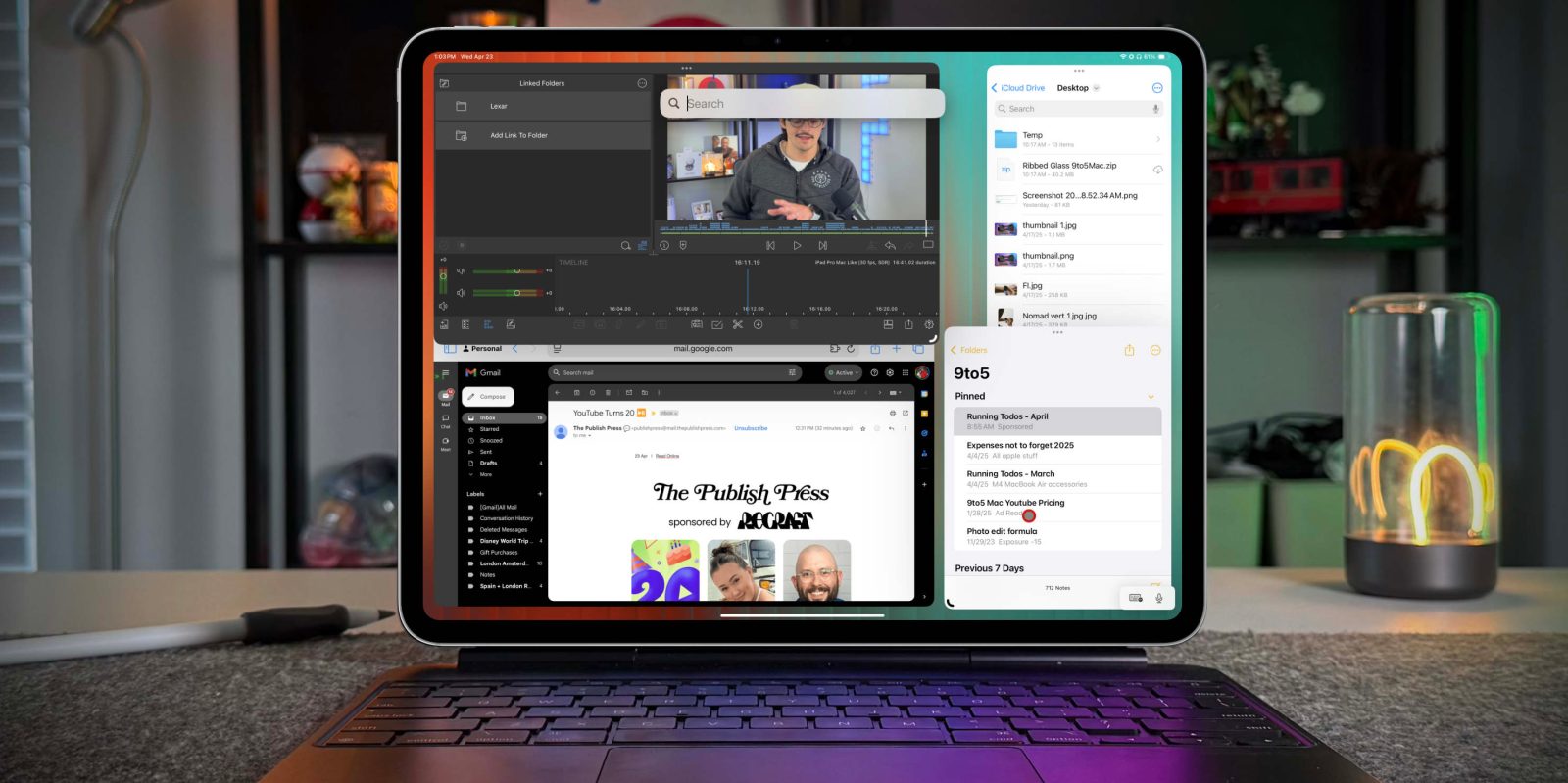
For the past seven years, I’ve used an iPad Pro as my main computer. In those years, I have seen the internal hardware match up to the power of MacBooks using the M4 chip, and I have witnessed iPadOS evolve from just a larger version of iOS to carving out its little niche use cases. Although for as much as I love my iPad, most would agree that iPadOS can sometimes feel like it holds that hardware back. But I have been able to change a few simple things that make my iPad look and feel like macOS without giving up the versatility of the iPad.
Be sure to watch our video below to get an in-depth look at all the changes I’ve made!
Homescreen
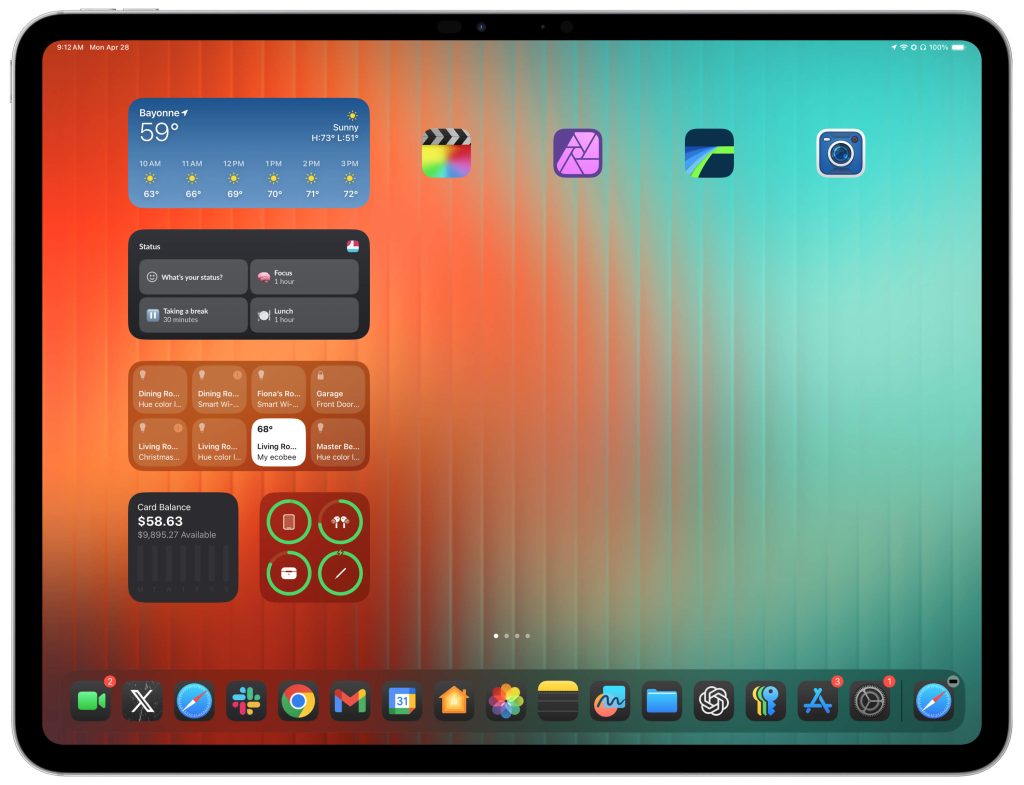
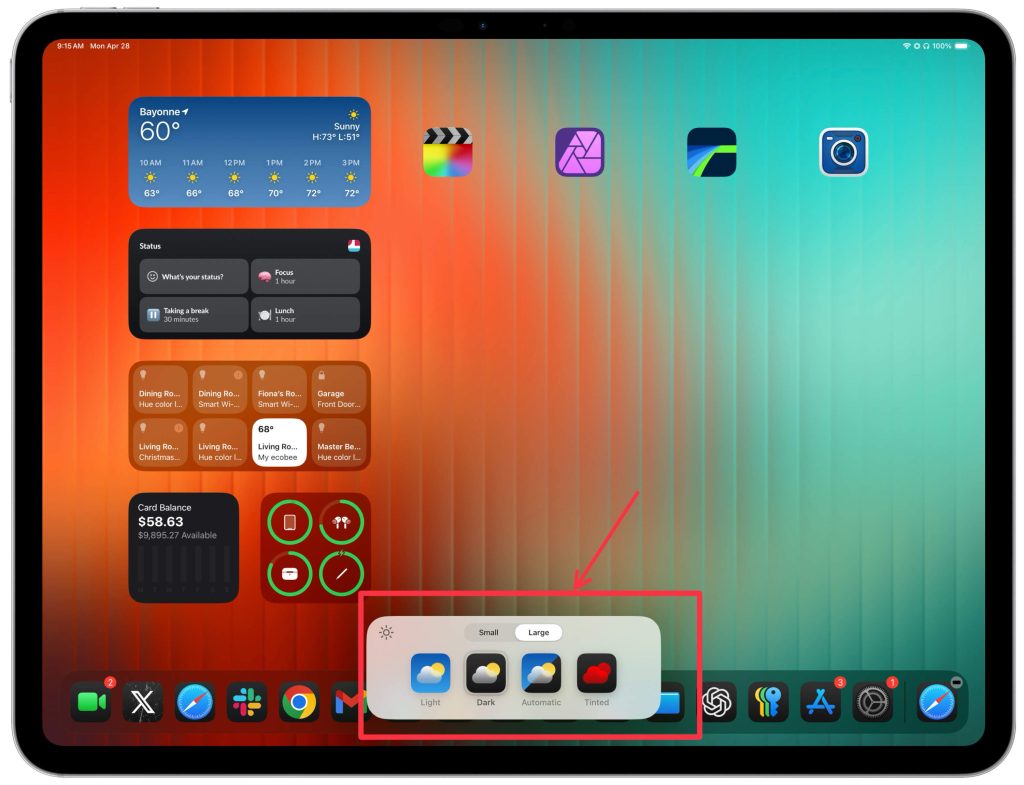
I first wanted to change how my homescreen was set up. I like to have a minimal look to my homescreen because if it’s cluttered, I feel disorganized. Also, for the most part, my iPad is a work machine. So I only wanted the necessary apps to be available to me quickly; everything else was tossed in the App Library. Lastly, iPadOS 18 finally allowed apps and widgets to be placed anywhere on the app grid. This allowed me to return the old Today View from iPadOS 13, which I miss dearly! I also like to change a few settings to perfect my homescreen. Here is what I do:
- Use the two leftmost grid columns as a space for my widgets. I use this for information and controls that I need at a glance. So I placed the weather, Notion, Home, battery, and Apple Card widgets.
- Next, I enlarge my App size in the ‘customize’ section. This removes the app’s name, and enlarging it makes it feel like there is less wasted space.
- I only place my main work apps on the home screen
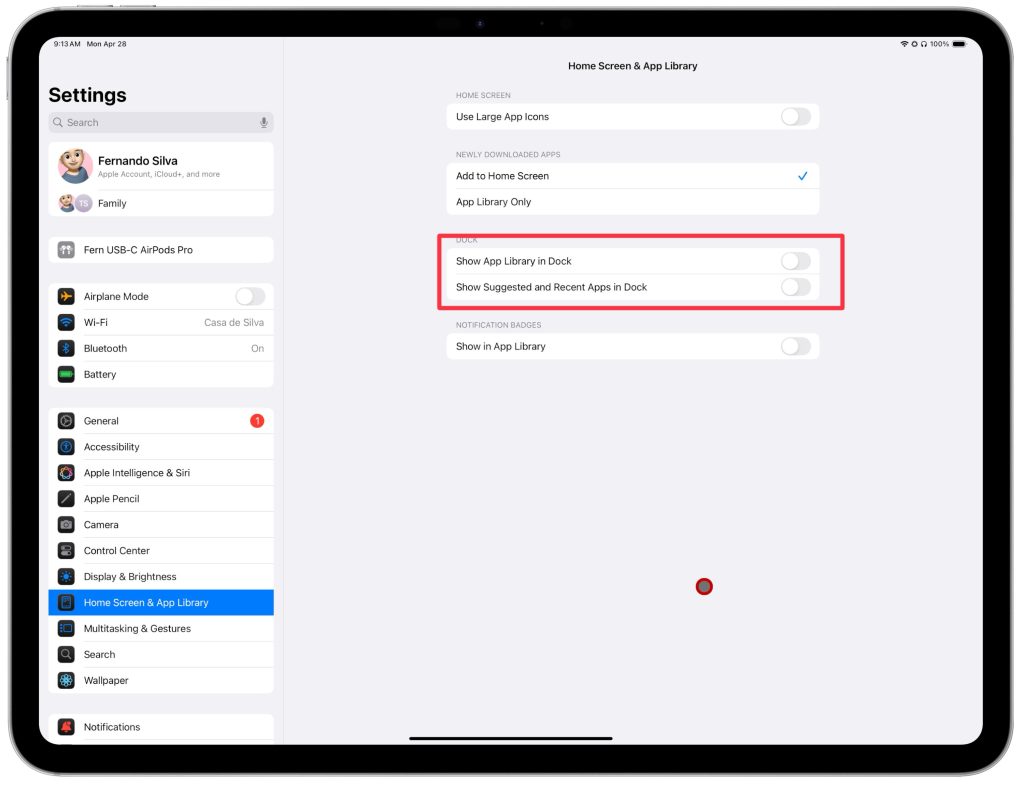
- For the dock, I placed my most-used apps, and I turned off the “show recent” and “show app library” settings. Again, they seem redundant and a waste of space.
Below is what this all looks like—a clean and purposeful homescreen. One quick tip I like to share is that you can use Command+space to bring up Spotlight and search for apps in the App Library. So if you have an app you use occasionally but don’t want it on the home screen, this is a simple method to get that done.
Stage Manager & desktop browsing
Now that we have the home screen set up, we have to talk about multitasking. Stage Manager has gone under the radar since its release. When it first came out, it was a bit janky. I was not a massive fan of it. But it has improved over the last two years, and I have mastered it. It is the primary way I use my iPad when the Magic Keyboard is on. But again, there are some settings I like to modify to take advantage of the screen real estate truly.
- Turn Stage Manager on
- Add Stage Manager toggle to Control Center
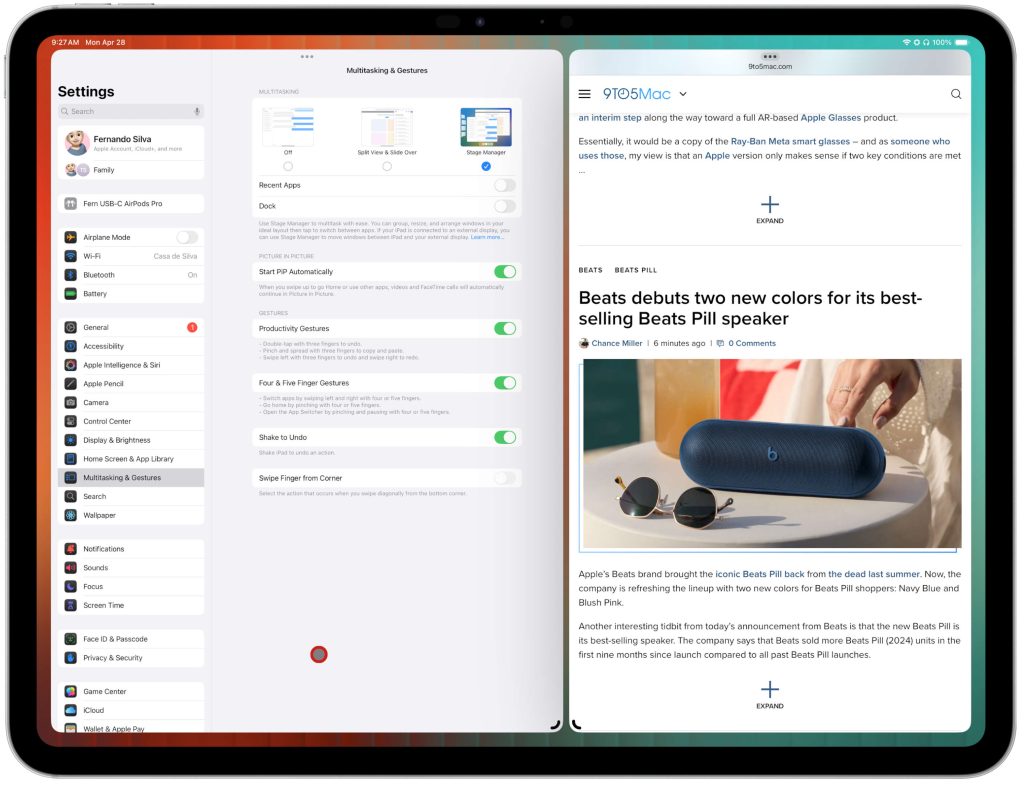
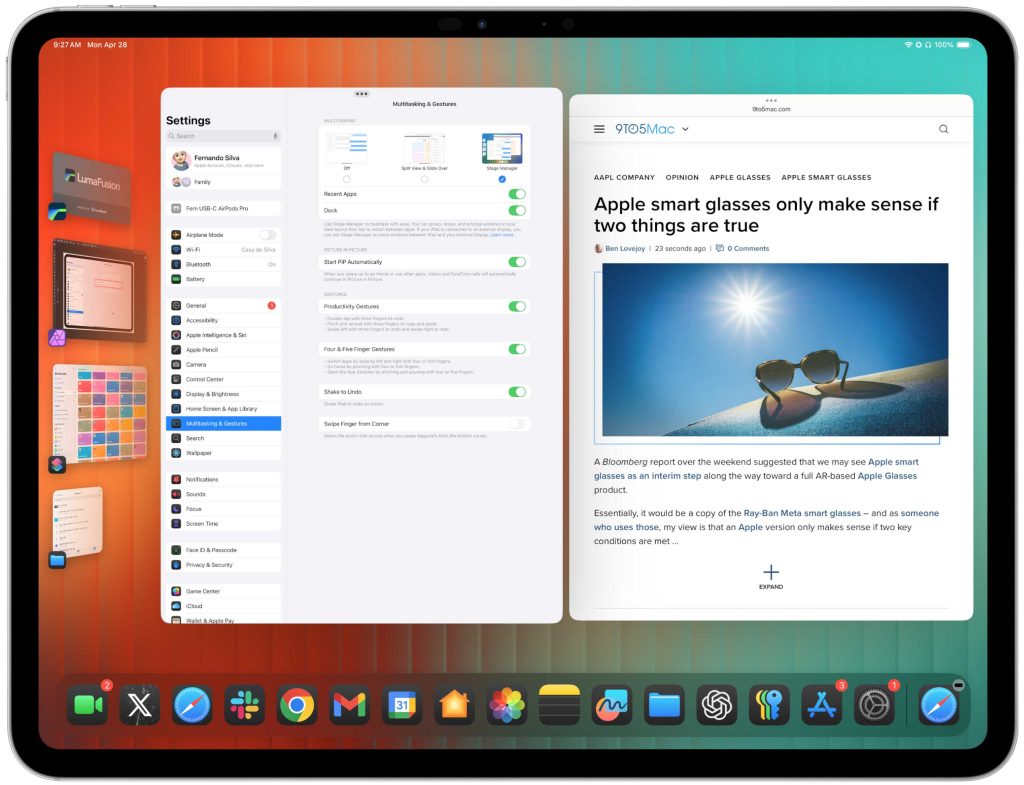
- Turn off Recent Apps and Dock
Below you can see the windowing size difference when you keep the Recent Apps and Dock settings off vs on
Chrome vs Safari
When it comes to browsing and using web apps, I use both of these apps. I am not 100% sure why but some sites work better or worse depending on the browser you are using but that is something I noticed. For example, using Google apps like Sheets works better on Safari. But something like WordPress works better on Chrome. So the key here is to see which apps you use and test it between the web browsers. However, one thing you need to do for both is to make sure you “request desktop site” in the settings of each browser.
Final take & more
This is just a small part of how I’ve turned the iPad Pro into a Mac-like experience without losing what makes it special. But there’s much more to cover — like how I fully manage Stage Manager when connecting to an external monitor, my must-have accessories for the best experience, and some extra multitasking tricks that make the iPad feel even closer to a MacBook replacement. If you want the full breakdown (and see my setup in action), watch the full video above.
Best iPad deals:
FTC: We use income earning auto affiliate links. More.


